Status Raptor Status Raptor
EnglishEspañolDeutschFrançaisDanskSvenskaNorskItalianoSuomiNederlands
Documentation Sign in

Features

  • Status updates
  • Incidents
  • Visibility modes
  • Custom domains
  • Services
  • Components
  • Public status page
  • Search engine indexing
  • RSS feed
  • Languages
  • Monitoring
  • Endpoints
  • Monitor types
  • Thresholds and timing
  • Email subscribers
  • Team and roles
  • REST API
  • Plans and limits
  • Accounts and sign-in
  • Security and rate limiting
  • Email notifications

How-to guides

Getting started

  • How do I create an account?
  • How do I sign in with Google or GitHub?
  • How do I create my first service?
  • How do I add components to a service?
  • How do I view my public status page?
  • How do I reset a forgotten password?
  • How do I change my password?

Publishing status

  • How do I publish a status update?
  • How do I publish an update for one component?
  • How do I format a status update with Markdown?
  • How do I edit or delete a status update?
  • How do I open an incident?
  • How do I post updates to an incident?
  • How do I close an incident?
  • How do I announce planned maintenance?

Visibility and domains

  • How do I put my status page behind a password?
  • How do I change or remove the password of my status page?
  • How do I share my status page with a secret link?
  • How do I use my own domain for the status page?
  • How do I fix a custom domain that will not verify?
  • How do I control whether search engines index my status page?

Monitoring

  • How do I verify ownership of an endpoint?
  • How do I monitor a REST health endpoint?
  • How do I check that a page contains specific text?
  • How do I monitor only the HTTP status code?
  • How do I monitor a page that is built with JavaScript?
  • How do I test a monitor before saving it?
  • How do I attach a monitor to a component?
  • How do I set how often a monitor runs?
  • How do I avoid false alarms and choose what happens when a target is unreachable?
  • How do I make a monitor public or private?
  • How do I read the monitoring history?
  • How do I delete a monitor or an endpoint?

Subscribers

  • How do visitors subscribe to my status page?
  • How do I unsubscribe from a status page?

Team

  • How do I invite a team member?
  • How do I accept or decline an invitation?
  • How do I choose or change a team member's role?
  • How do I remove a team member?

API and automation

  • How do I create or revoke an API key?
  • How do I post a status update from a script?
  • How do I open and close an incident from a script or a deployment pipeline?

Plans and account

  • How do I request an upgrade to PRO?
  • What are the limits of FREE and PRO?
  • How do I delete a service or a component?
    Documentation / Features Requires PRO

    Custom domains

    A custom domain serves your status page at a hostname you own, such as status.example.com. Hypertext Transfer Protocol Secure (HTTPS) certificates are issued and renewed automatically. This feature needs the PRO plan, see how to request it.
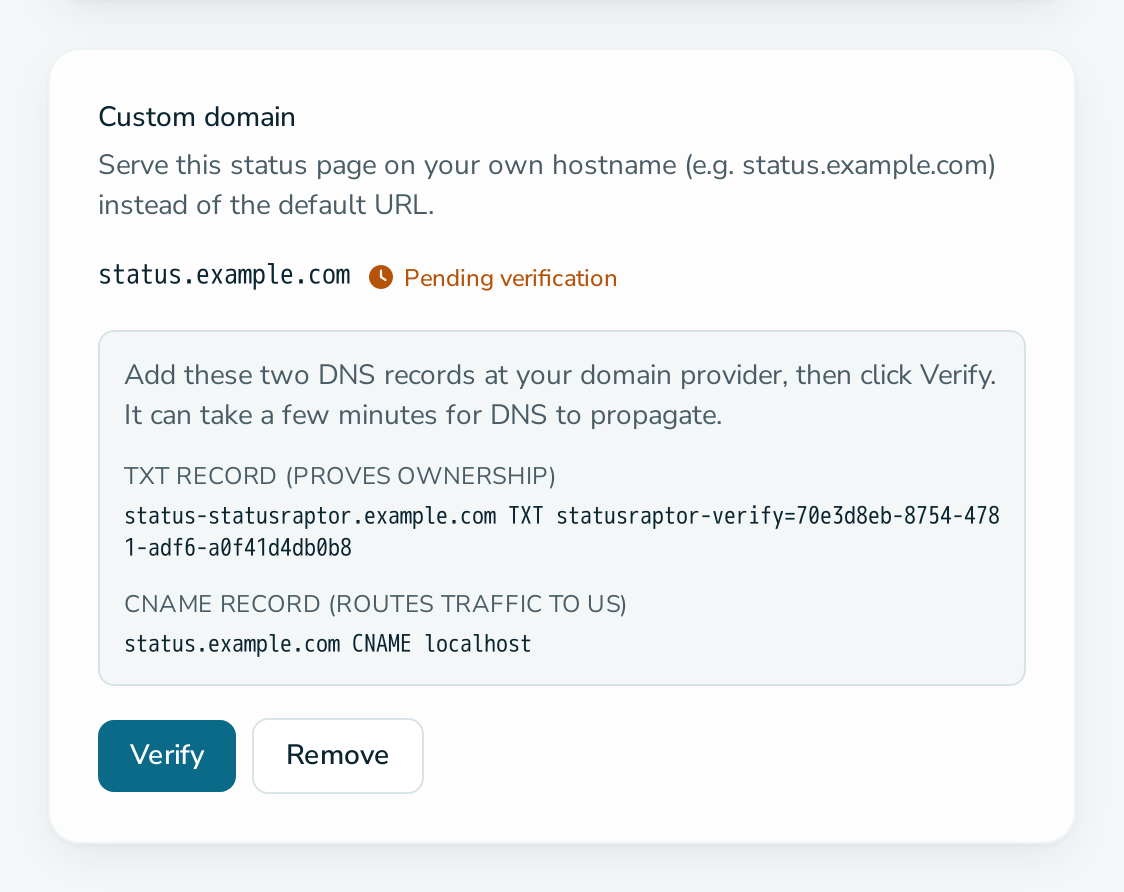
    Custom domain card waiting for DNS verification

    How it works

    1. A service ADMIN adds the hostname under Settings, in the Custom domain card.

    2. You create two Domain Name System (DNS) records at your DNS provider: a CNAME (canonical name) record and a TXT (text) record.

      Record Name Value
      CNAME your hostname the Status Raptor host shown in the card
      TXT <first-label>-statusraptor.<rest> statusraptor-verify=<token>

      For status.example.com the TXT name is status-statusraptor.example.com. It uses a sibling name because a CNAME and a TXT record cannot share the same name.

    3. Verify checks the TXT record. After it passes, the domain is active.

    4. The first request over HTTPS triggers certificate issuance. The first load can take a few seconds.

    A CNAME points one name at another. A TXT record holds free text and proves you control the zone.

    What the domain serves

    Only the status page for that service. Every other path, including sign-in and the back office, redirects to the main Status Raptor site.

    Limits

    • One domain per service. A hostname can belong to one active service only.
    • The page must be public. See visibility modes.
    • Downgrading from PRO stops the domain from resolving immediately.
    • Changing the hostname resets verification.

    Removing a domain

    Remove clears the hostname and the verification. The page stays available at /status/{slug}.

    Related

    • How do I use my own domain for the status page?
    • Visibility modes

    Status Raptor
    Status Raptor by Input Objects GmbH
    Good Stuff Platform status Documentation Friendly Policy
    Legal Stuff Terms & Conditions Privacy Policy Cookie Policy Imprint
    How do I publish a status update?How do I post updates to an incident?How do visitors subscribe to my status page?How do I announce planned maintenance?How do I control whether search engines index my status page?
    How do I share my status page with a secret link?How do I post a status update from a script?How do I put my status page behind a password?How do I make a monitor public or private?How do I monitor a page that is built with JavaScript?
    v1.4.1 · © 2026 Input Objects GmbH